Persistent storage on Spectranext
Spectranext now has persistent (permanent) file storage.
The recent update adds a second 4MB filesystem on top of the existing 4MB temporary storage. The temporary RAM storage is still there, and it is still useful: it is fast, good for quick iterations, and convenient for programs that need scratch space while they run. The new flash storage is for the files you want to keep.
The important part is that the flash filesystem is overlayed. There is no special folder, no separate mount point, and no extra setup step. Files committed to flash appear in the same filesystem view as temporary files, but they survive power loss.
Details on how it works you can read on Documentation Portal
Using it from the Browser
Open the Spectranext Browser and upload the files you want to use.
Uploaded files are temporary by default. That keeps the fast edit-test loop intact: send a file, try it, replace it, delete it, and repeat without wearing flash storage unnecessarily.
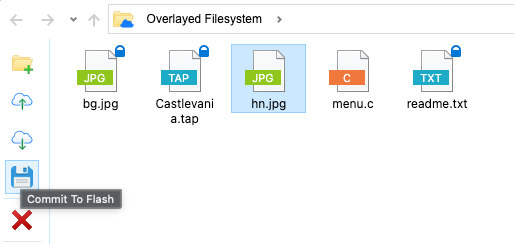
When you want to keep a file, select it and click the disk icon labelled Commit To Flash. Spectranext copies that file from RAM into the overlayed flash filesystem. From that point on, it is committed.
Doing so from terminal
Spectranext SDK comes with a command-line tool spx, which would show
you if files are committed:
spx ls /
f Castlevania.tap                    126394 committed
f bg.jpg                             307431 committed
f readme.txt                              0 committed
f hn.jpg                             116687 ram
f menu.c                              27553 ram
And allow to commit
spx commit menu.c
Committed menu.c to flash
Example use case: keep a snapshot
One practical use is keeping a favourite game on the cartridge:
- Load a program or game of interest.
- Press the magic button.
- Select F for the snapshot manager.
- Select the RAMFS filesystem.
- Save a snapshot of the game onto that filesystem.
- Open the Spectranext File Browser and commit that snapshot into flash, or do the same from BASIC.
- Later, restore it any moment you want with the snapshot manager or
%loadsnap.
Why this matters
This makes permanent files feel ordinary.
If you want to have your favourite TAP available at a moment's notice, upload it once, click Commit To Flash, and it will still be there after the machine is powered off. You do not need to remember a flash path, mount a different drive, or move software into a special permanent-storage area.
Temporary files remain temporary. Committed files become permanent. They live together in one view.
That is the whole idea: quick iteration when you are experimenting, durable storage when you decide something belongs on the cartridge.